
Built by a Retailer. For Retailers.support@lotterytvscreen.com

DIGITAL DISPLAYS. CONNECTED STORE TOOLS.

A better lottery display.
A smarter lottery counter.

Make it easier for customers to see what’s available—and for your team to track every book, scan and shift behind it.

Built for real retail work. Made for South Carolina retailers.

YOUR CUSTOMER’S VIEW Interactive sample
Try a look
Open larger demo ↗

The actual display software, using sample tickets and draw data.

Show your selectionScratch-offs, positions & draw panels
Scan as you workSales, returns & ticket checks
Know your inventoryFrom unopened pack to sold book
Close with a clear recordShift totals, exports & history

MORE THAN A SCREEN ON THE WALL

The display gets their attention.
The tools keep you organized.

A customer sees the games. You see the books, the current numbers, the returns and the day’s totals. Lottery TV Screen brings those two sides of the counter into one connected workflow.

A LOOK INSIDE THE WORKING PROGRAM

See what your team
will actually use.

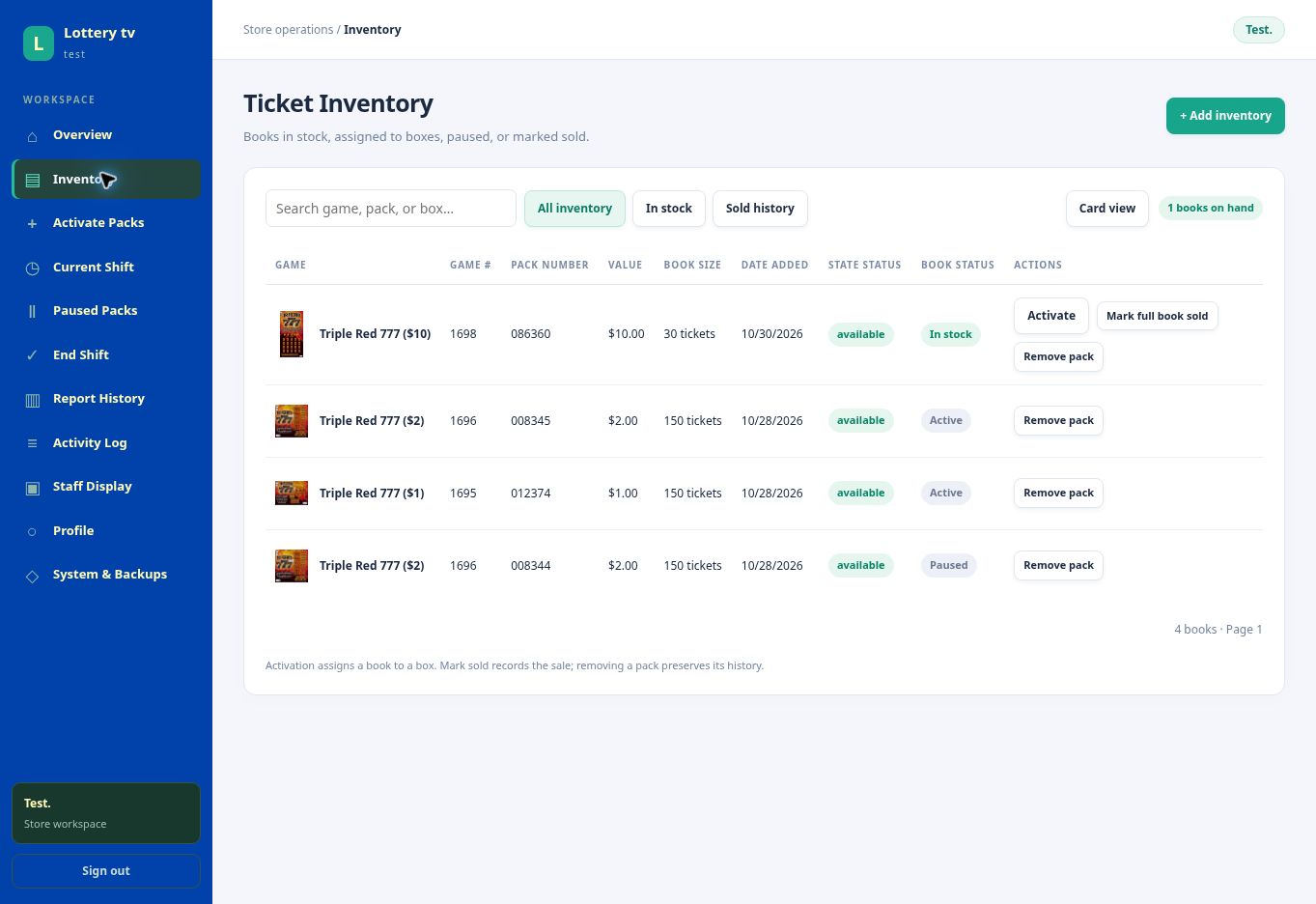
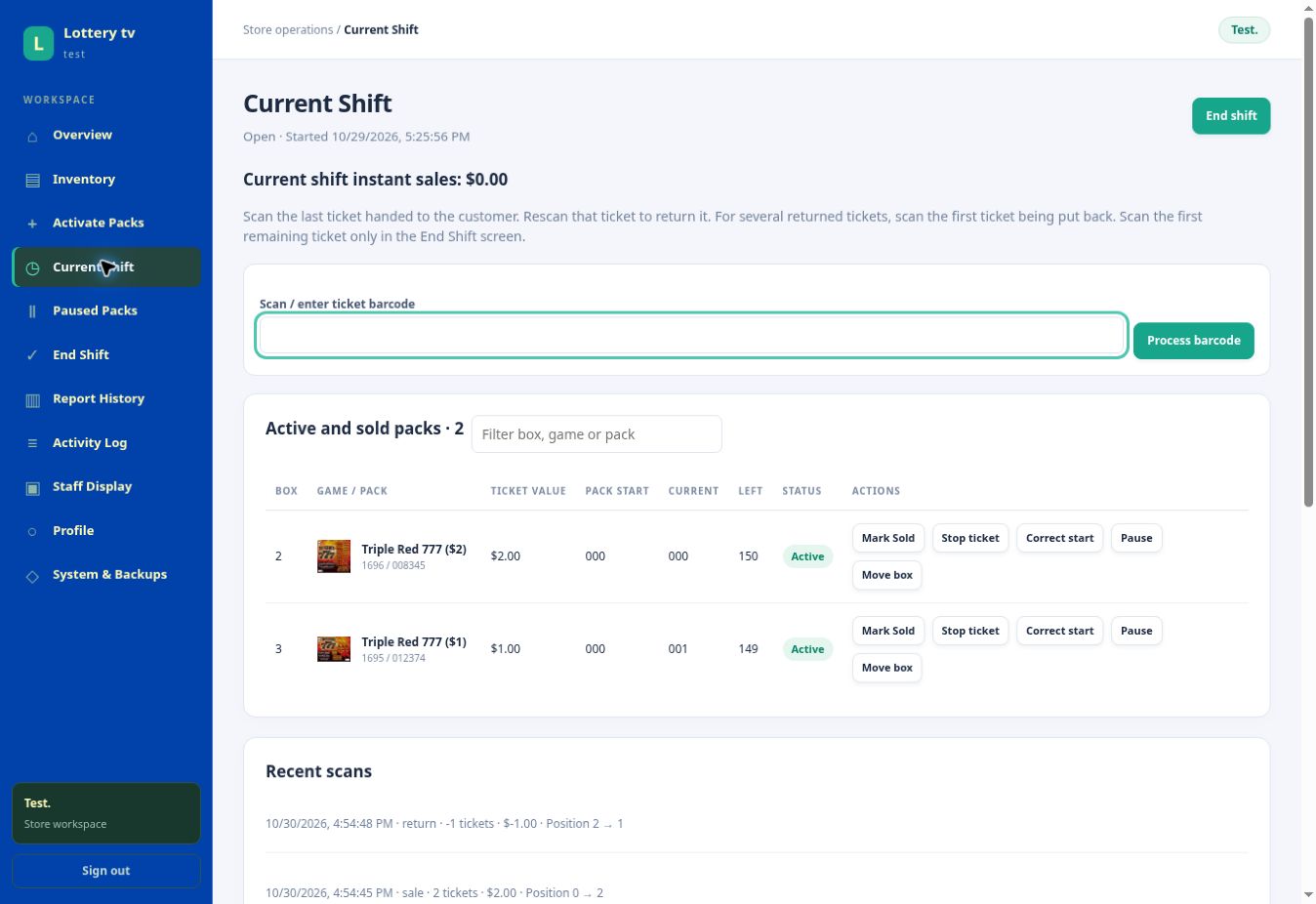
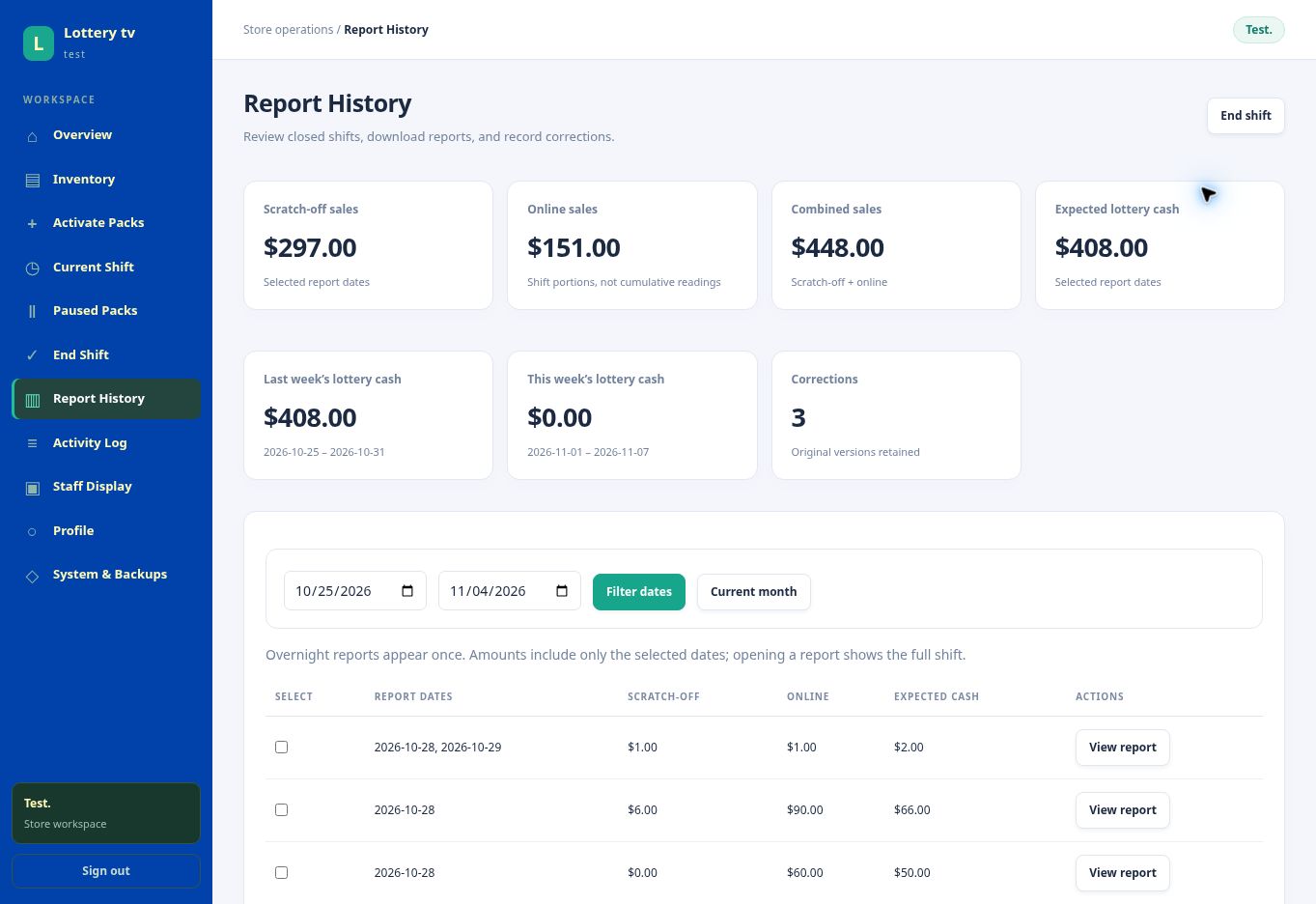
Explore four real screens from our testing store.
Open any screenshot for a closer look.

See how it could fit your store
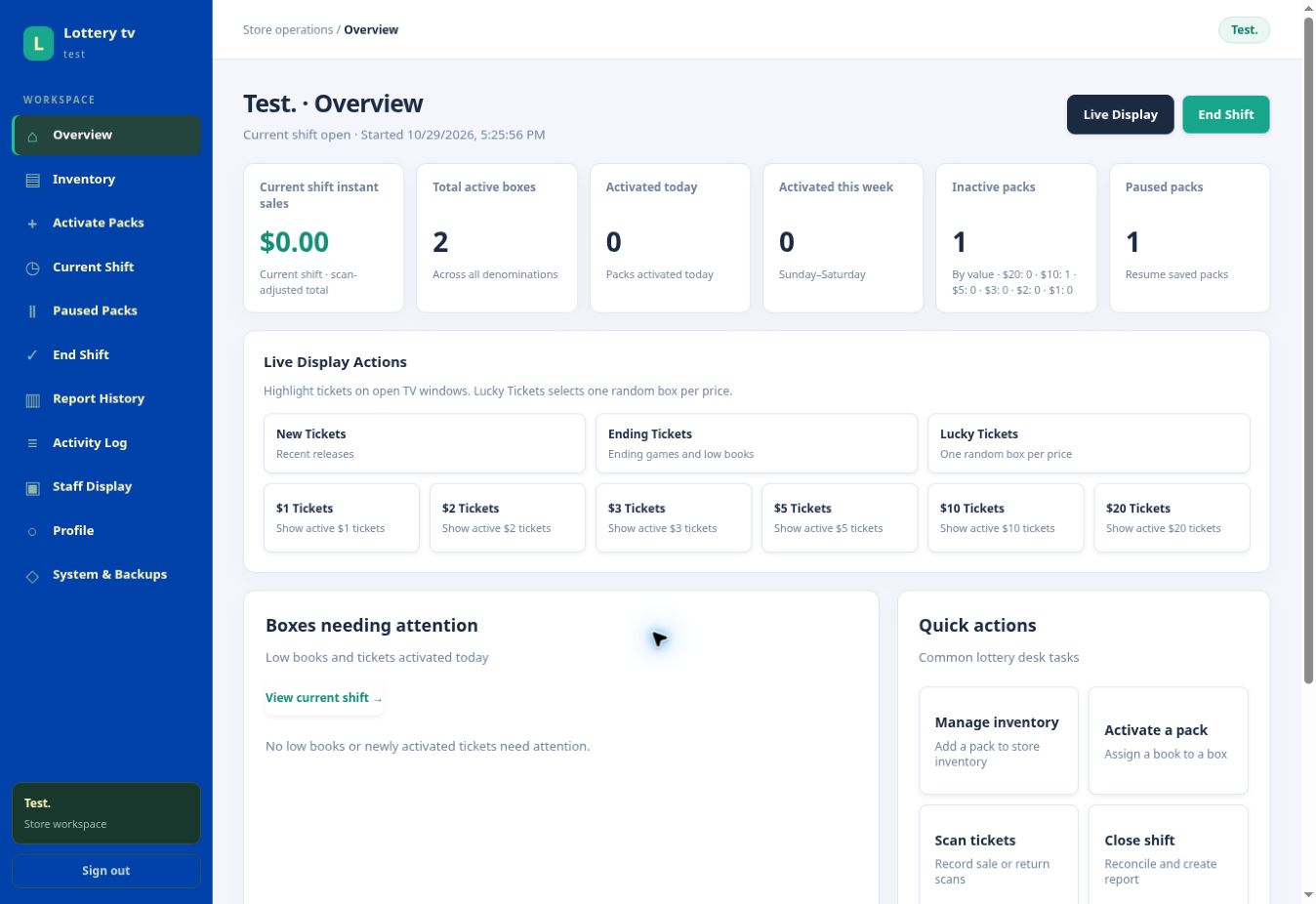
Actual testing-store dashboard with shift sales, active boxes, inventory counts, live display actions and quick actions.

The store at a glance.

View active boxes, inventory counts and quick actions from the Overview screen.

Actual program captures from November 4, 2026. Test-store figures shown; branding and layout can vary.

THE FULL PICTURE

One platform.
A lot of everyday work covered.

From the first unopened pack to the last shift report.
Explore the capabilities already built into the program.

01

Customer TV display

Give every active game a place to shine.

  • Live scratch-offs on screenTicket artwork, prices, box numbers and current positions. Sold-out books leave the display.
  • Current number + remaining ticketsAlternate the ticket position with how many tickets are left.
  • New, Ending & Lucky highlightsDraw attention to recent games, low books or a random selection by ticket price.
  • Jackpots & draw resultsSouth Carolina draw panels, including Powerball and Mega Millions, alongside your scratch-offs.
  • Optional jackpot announcementsTimed voice announcements when enabled; browser audio permission is required.
  • Your store’s lookLogo, colors, backgrounds, ticket sizing, box badges and number sizes.
  • Flexible screen layoutsLandscape or portrait layouts, fullscreen display and external-screen selection.
02

Scanning & pack control

Fewer steps between the scan and the screen.

  • Sale and return scanningScan the last ticket handed out and record tickets returned to a book.
  • Flexible ticket directionSupport for standard and reverse-numbered books.
  • Pause, resume & moveKeep a pack’s position when pausing it or moving it to another box.
  • Mark sold & revert soldHandle a missed final scan or bring a sold book back for review.
  • Scan feedbackDistinct success and error notices, with configurable sounds.
03

Inventory & activation

Know what’s waiting, active, paused or sold.

  • Book inventoryTrack game number, pack number, ticket value and book size.
  • Batch pack entryScan and review multiple books before saving them to inventory.
  • Box assignmentActivate a pack with a box number, starting position and direction.
  • Shared South Carolina catalogGame information and ticket artwork, with administrator-managed corrections.
  • Search & pack statusFind books and manage returned packs and inventory exceptions.
04

Shift close & reports

Turn daily activity into a record you can revisit.

  • End-shift ticket checkReconcile active books against the first ticket remaining.
  • Terminal totals & expected cashEnter online sales, cancels and cashes alongside scratch-off totals.
  • Optional cash countingUse the cash-counting preference that fits your store’s workflow.
  • Date filters & weekly totalsReview selected dates and current or previous week lottery cash totals.
  • Excel, print & PDFExport reports to Excel, or print and save a formatted PDF.
  • Corrections with historyCorrect terminal totals or restore found tickets while retaining prior report versions.
05

Offline continuity

Keep prepared books moving through a connection drop.

  • Offline DeskPrepare an active-pack snapshot on the store PC while online.
  • Local scan queueSave eligible sale, return and reconciliation scans on that PC.
  • Reconnect & syncUpload queued records after the connection returns.
  • Recovery exportExport saved offline records and review sync conflicts when needed.
  • Clear operating limitsPrepared access lasts 24 hours. Activation, inventory changes and final shift submission need an online connection.
06

Store access & ongoing support

A platform that keeps locations and changes organized.

  • Separate store workspacesStore logins and access restricted to assigned locations.
  • Two-step administrator sign-inAuthenticator verification for platform administration.
  • Recorded changesActivity, report corrections and administrator actions retain a history.
  • Managed software releasesStaged rollouts, automatic delivery when safe and reported screen-version status.
  • A direct support contactQuestions and setup interest go to support@lotterytvscreen.com.
Have a particular workflow in mind? Let’s talk about it.

PREPARE FOR THE WI-FI MOMENT

The connection can drop.
Your prepared scans can keep going.

Offline Desk lets your team scan eligible active packs from a saved snapshot. Records stay queued on that PC, ready to upload when the connection returns.

Ask how offline scanning works
01
Prepare while online

Save the active-pack snapshot on your store PC.

02
Scan through the outage

Eligible records are saved locally on that PC.

03
Reconnect and sync

Upload pending records and review any conflicts.

Prepared access lasts 24 hours. New pack activation and final shift submission require an online connection.

FAMILIAR STEPS. BETTER CONNECTED.

From book to box
to the end-of-day picture.

Talk through your setup
  1. 1

    Add the books

    Scan packs into inventory and review the games you have on hand.

  2. 2

    Activate a box

    Assign a pack, box number, starting position and ticket direction.

  3. 3

    Scan as you sell

    Record sales or returns and keep the customer display aligned.

  4. 4

    Check and close

    Reconcile books, enter terminal totals and save the shift report.

MAKE IT WORK AT YOUR COUNTER

Familiar hardware.
Your store’s own look.

You don’t have to design a lottery workflow from scratch. Bring your existing setup into the conversation and we’ll discuss what fits.

Tell us about your setup

A computer + a TV

Use a desktop or laptop with a connected TV or external display. Set the layout for landscape or portrait.

A compatible barcode scanner

A scanner that enters ticket barcodes supports your store’s scanning workflow. Ask us about your current scanner.

A browser + a store login

Chrome is recommended. Prepare Offline Desk online before an outage. Includes South Carolina catalog and draw-results support.

We know there’s a real
store behind every screen.

Lottery TV Screen was created by a store owner, with the daily details in mind: the next ticket, the book that needs moving, the last scan and the shift that needs closing.

That’s why the customer display and the tools behind the counter belong together.

BEFORE WE TALK

Good questions.
Clear answers.

Don’t see yours here?
Email us at support@lotterytvscreen.com ↗

Is this just a lottery TV display?

No. The customer screen is connected to a staff workspace for scratch-off inventory, pack activation, ticket scanning, current-shift activity, closing reports and corrections.

Can I use my own logo, colors and screen layout?

Yes. Customize your store branding, background, ticket layout, box badges and number sizing. The program supports landscape and portrait layouts; available external-screen controls depend on your browser and hardware.

What happens if my internet goes down?

Prepare Offline Desk on the store PC while online. Eligible active-pack scans can then be saved locally and uploaded after reconnecting, within the prepared 24-hour access window. New pack activation, inventory changes and final shift submission require an online connection.

Does it connect to or replace the official lottery terminal?

No. Lottery TV Screen manages your display and store records. It does not submit transactions to the lottery terminal or sell tickets online. Terminal totals are entered as part of your shift-close workflow.

Which states are supported?

The current catalog and draw-results integration is focused on South Carolina. If your store is in another state, tell us where you are so we can discuss availability.

Can I manage more than one store?

The platform has separate store workspaces and location-based access. Tell us how many locations you operate so we can discuss setup and access for your business.

How much does it cost, and how do I get started?

Contact us to discuss current availability, plan details and the right setup for your store. We’ll help you understand what fits your location. Existing users can continue through Store login.

PRICING & AVAILABILITY

A setup that fits
your store.

Tell us how many locations you operate, the screens you want to use, and which daily tasks you’d like to simplify. We’ll discuss availability and pricing for your setup.

No purchase or subscription is created by sending an inquiry.

Let’s talk through your needs.

Digital displays, scanning, inventory, shift reports—or the complete platform.

Request pricing

Have an existing TV or scanner? Include it in your message.

LET’S LOOK AT YOUR LOTTERY COUNTER

Like what you see?
Let’s talk about your store.

Ask for a walkthrough, tell us about your current setup, or send the question you haven’t found an answer to.

support@lotterytvscreen.com

What happens next?

  1. Tell us a little about your store.
  2. We discuss your display and daily workflow.
  3. We help you understand the next steps for your setup.

Tell us what you’re looking for.

We’ll help you start the conversation.

Sends your inquiry directly to our support team. Read our Privacy Policy and Website Terms. You can also email us directly.

Program screenshot